Travel Photo Map. GPS Routes, Free
Drop photos with GPS — coordinates are read locally in your browser and plotted on OpenStreetMap. Pins color-coded by country, connected by chronological dashed line.
EXIF read locallyCountry auto-groupingHaversine kmJPG · HEIC
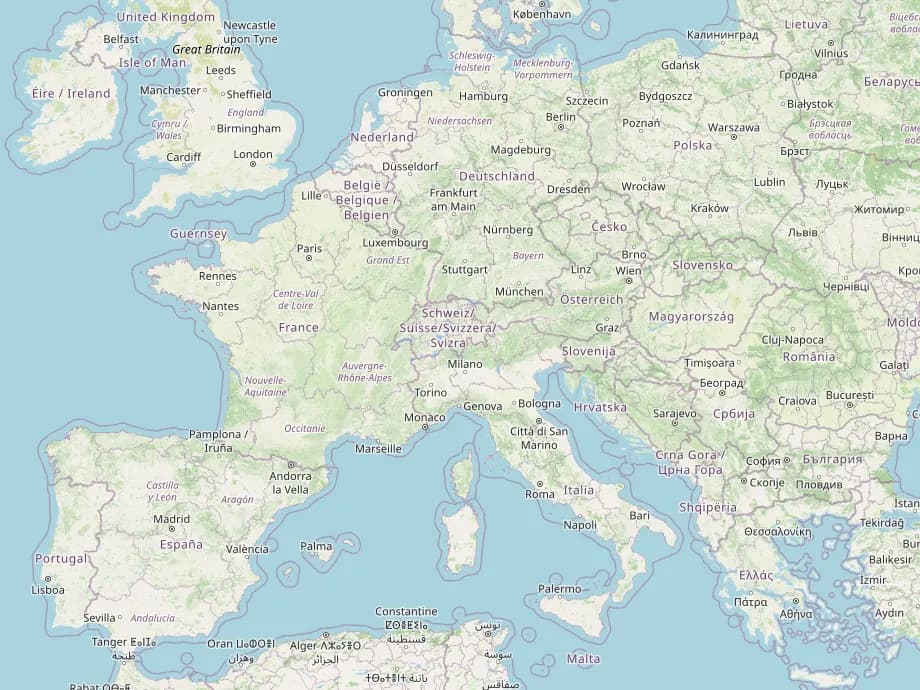
Reading EXIF locally
🇵🇹Lisbon
1Countries
0km
18Photos
Drop your travel photos
GPS coordinates are read and plotted on your map
All processing happens in your browser- photos never leave your device
Free: up to 20 photos · Pro: 500
How to use TravelMap
1
Drop photos with GPS
Upload JPG or HEIC files taken with a GPS-enabled camera or phone. Mix photos from multiple trips freely.
2
Interactive map generated
GPS coordinates are read from EXIF locally in your browser. Each photo gets a numbered pin, color-coded by country.
3
See your travel route
Pins are connected in chronological order. See total distance traveled, countries visited, and photos per country.
Pro tip
Use GeoSort to organize your travel photos into country folders before mapping them. Sort by location
What is TravelMap?
TravelMap is a free browser-based tool that reads GPS coordinates from your photo EXIF data and visualizes them on an interactive map powered by OpenStreetMap. Each photo appears as a numbered pin, color-coded by country, connected by a dashed line in chronological order of capture date.
TravelMap calculates total distance traveled using the Haversine formula, counts countries visited, and shows a breakdown of photos per country. It supports JPG and HEIC files. No photo data is ever uploaded- only GPS coordinates are sent to the reverse geocoding API to resolve location names.
How it works
1
Drop your travel photos
Select or drag any JPG, HEIC, or PNG files. Mix multiple trips and destinations freely.
2
GPS is read locally
TravelMap reads the GPS coordinates from each photo's EXIF data entirely in your browser- no upload needed.
3
Pins appear on the map
Each photo gets a numbered pin, color-coded by country. A dashed line connects them in chronological order.
Why TravelMap?
Interactive map
Powered by OpenStreetMap and Leaflet. Zoom, pan, and click each pin to see the photo filename, location name, and date it was taken.
Counts countries
TravelMap automatically groups your photos by country and shows a country breakdown with photo counts- see exactly which countries you covered.
Measures km traveled
Using the Haversine formula, TravelMap calculates the straight-line distance between all your GPS points in chronological order and shows total km.
100% private
GPS coordinates are extracted from EXIF data entirely inside your browser. Your photos never leave your device- only lat/lon values hit our API for location names.
Works with any camera
iPhone HEIC, Android JPG, mirrorless cameras with GPS- if the file has GPS in its EXIF, TravelMap plots it. Sorted chronologically by capture date.
Export your journey
Copy all coordinates as JSON for use in other apps, or open the full route in Google Maps. Use browser screenshot for a quick map image.
Common questions
What if my photos have no GPS?
Photos without GPS data are silently skipped. Only photos with valid coordinates are plotted. If none of your photos have GPS, you will see an error message. To check if a photo has GPS, right-click it on macOS and choose 'Get Info'- the location appears under the More Info section.
Can I export the map as a PNG?
The simplest approach is to use your browser's built-in screenshot tool (Cmd+Shift+4 on macOS, Win+Shift+S on Windows) to capture the map. You can also copy all GPS coordinates as JSON using the 'Copy coordinates' button and paste them into tools like Google My Maps or Felt to generate a shareable map.
Does this work with iPhone photos?
Yes. iPhone photos in HEIC format include GPS coordinates in EXIF data by default- as long as Location Services was enabled for the Camera app when the photo was taken. TravelMap reads HEIC and JPG equally well.
How accurate is the distance calculation?
TravelMap uses the Haversine formula to calculate great-circle distance (straight-line as the crow flies) between consecutive GPS points. It does not account for roads or actual travel routes- think of it as a lower-bound estimate of the distance your journey covered.
📖 Related guide
Turn Your GPS Photos into a Travel Map →