How to Blur Faces, License Plates and Sensitive Data in a Photo (No Upload)
As a street photographer I blur faces constantly before posting. Here is how I do it in the browser with no upload, and why that privacy point matters more than most people realise.
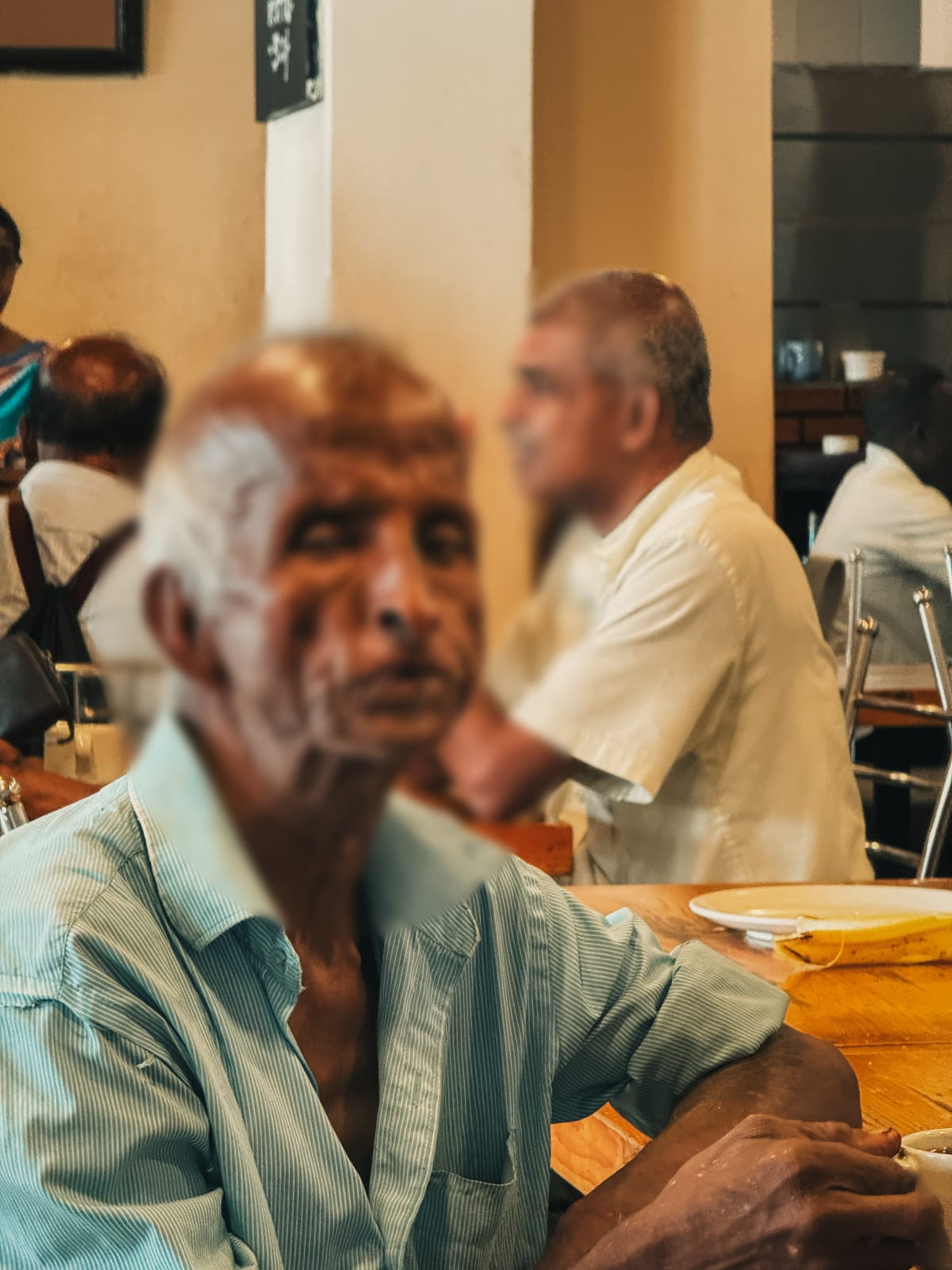
Table of Contents
The street photography privacy problem
The photo at the top of this article is one I shot in Bali on my Sony A7C II. I was working on a street series in Ubud, and I wanted to capture the texture of daily life: market stalls, narrow lanes, people going about their morning. Most of those frames have strangers in them. Strangers who did not sign a model release. Strangers who might live on the other side of the planet from where the photo will be posted.
Before any of those photos go online, I go through them and blur the faces where the person is clearly identifiable. Not every photo, not every face in the background. But anywhere a reasonable person could look at the image and recognise a specific individual, I blur. It takes a couple of minutes with the right tool. It is the courteous thing to do. And depending on where you are in the world and where your audience is, it may also be the legally required thing to do.
I built and use SammaPix's blur and censor tool for exactly this. It runs in the browser: I open the image, draw rectangles over the faces I want to blur, choose my blur strength, and export. No upload. The pixels are gone from the saved file permanently. But before I walk through the tool itself, I want to explain the full picture of when and why you need to do this, and which censoring method is actually secure.
When you need to blur or censor a photo
Blurring faces is the most obvious use case, but it is far from the only one. These are the situations I personally encounter or hear about regularly:
Street and travel photography
Any time you post a street or travel photo where people are identifiable, you are publishing personal data in the sense that the EU's General Data Protection Regulation understands it. A photograph of a recognisable face is personal data. If you are posting commercially, or to a large audience, or in a context where the person could suffer harm from being identified, blurring is the safe choice. You can see the kind of work this workflow comes out of in my portfolio.
Selling a car online
When you post photos of a car for sale on a marketplace, your license plate is visible. Your plate can be used to look up the vehicle's registration history in some countries, or to run fraudulent toll or parking schemes. Most people blurring their plate for a classified ad listing do not need anything fancy: a simple blur or block over the plate before uploading is enough.
Real estate listing photos
Photos of a property for rent or sale sometimes show the house number on the door, the street sign visible through a window, or mail on a table with an address visible. Removing or blurring these identifiers before listing protects the seller's or tenant's precise address from being aggregated by scrapers.
Screenshot redaction
This is one of the highest-stakes uses. When you share a screenshot for support, debugging, or social media, it often contains data you did not intend to share: an IBAN in a bank transfer form, an account number in a settings screen, an identity document number in an onboarding flow, email addresses in a CC field, or personal names in a message thread. A quick blur pass before sharing is essential.
Photos of children
Many parents are increasingly careful about posting identifiable photos of their children online. Blurring a child's face in a group photo before sharing the image to a wider audience, or before posting to a public account, is a reasonable precaution that many parents now take as a default.
| What to censor | Common context | Recommended method |
|---|---|---|
| Faces | Street photography, events, travel | Strong blur or solid block |
| License plates | Car sales listings, street shots | Blur or solid block |
| House numbers and addresses | Property listings, outdoor photos | Blur or solid block |
| Document numbers (ID, IBAN, passport) | Screenshots, onboarding flows | Solid block only |
| Account numbers, passwords on screen | Support screenshots, tutorials | Solid block only |
| Children's faces | Family photos shared publicly | Strong blur or solid block |
Blur vs pixelate vs solid block: which is actually safe?
This is the question most people skip, and it is the one that matters most if you are censoring anything genuinely sensitive. The three methods look similar on screen but have meaningfully different security properties.
Blur
A Gaussian or box blur mixes neighbouring pixels together, creating a soft, out-of-focus appearance. The original pixel values are mathematically combined with those around them. A sufficiently strong blur makes a face unrecognisable to the naked eye, and in most practical contexts it is not recoverable. However, research has shown that very light blur can sometimes be partially undone using deconvolution algorithms or AI models trained to sharpen blurred images, particularly for faces. The key word is light: a blur radius of 2 pixels on a high-resolution photo may look blurred on screen but retain enough structure to be partially reconstructed. A radius of 20 or 40 pixels destroys far more information and is considerably harder to reverse.
Pixelate
Pixelation divides the selected area into large blocks and fills each block with the average colour of the pixels it contains. A 2020 academic paper demonstrated that low-quality pixelation of faces can sometimes be partially reversed using neural networks trained on similar faces. The attack works best when the block size is small (8x8 or 16x16 pixels) because more structure remains. Larger block sizes destroy more information and are harder to attack. For casual use, such as hiding a plate in a marketplace listing, pixelation is fine. For truly sensitive identifiers, it carries a small but non-zero risk.
Solid block
Replacing the selected area with a flat colour, usually black, destroys all pixel information in that region completely. There is nothing to reconstruct. Every pixel in the block is identical. No algorithm can infer what was there from the surrounding context alone. This is the method I recommend for anything genuinely sensitive: national ID numbers, financial account details, medical information, passwords, or any number where even a partial recovery would be harmful.
| Method | Reversibility | Visual look | Best for |
|---|---|---|---|
| Strong blur | Very low at high radius | Soft, natural looking | Faces, plates, addresses in photography |
| Pixelate | Low at large block size, moderate at small | Retro pixel look | Casual privacy, stylistic censoring |
| Solid block | Zero: all data destroyed | Flat colour rectangle | IDs, financial data, passwords, compliance |
Blur faces, plates or block sensitive data right now
Choose blur, pixelate or solid block. Draw over any area. Export. The censored pixels are gone from the saved file permanently. Runs in your browser with no upload.
Open the Blur and Censor tool, FreeHow to blur faces and sensitive areas step by step
The process in SammaPix Blur and Censor is designed to be fast. Here is the complete workflow:
- Open the tool at sammapix.com/tools/blur-censor. No account required. Works in Chrome, Safari, Firefox and Edge.
- Drop or select your image. JPG, PNG, WebP and most common formats are supported. The file is read locally by your browser. Nothing is transmitted.
- Choose your censoring method: blur, pixelate or solid block. For faces in a photo you want to share publicly, strong blur works well. For financial data or document numbers in a screenshot, use solid block.
- Draw rectangles over each area to censor. Click and drag to define the region. You can add as many regions as needed before exporting.
- Adjust blur strength if using blur. A higher radius destroys more information and is harder to reverse. For faces, I typically use a radius that makes the face completely unreadable, not just softened.
- Export the image. The tool renders all censor regions onto the canvas and generates a new image file. The original pixel data under each region no longer exists in the output file. Download the result.
The entire process for a single photo typically takes under a minute. For a batch of street photos from a session, I open each one in sequence, blur the faces, export, and move to the next. It is part of my standard post-processing routine before anything goes to Instagram or my website.
A note on what "permanently destroyed" means
Some image editing tools, particularly layer-based apps like Photoshop, store censor regions as a separate layer on top of the original image. If you save in a format that supports layers (PSD, for example), or if you accidentally export a flattened version without the censor layer applied, the underlying image can be recovered simply by deleting the censor layer.
SammaPix does not use layers. The blur or block effect is rendered directly onto the HTML Canvas, which is a flat pixel buffer. When you export, the canvas is encoded as a JPEG or PNG. There are no layers, no hidden data, and no way to recover the original pixels from the exported file. The censored area is mathematically overwritten.
What to censor: a practical guide by situation
Street and travel photography before posting
Check for faces, particularly anyone who is clearly the subject of the frame rather than an anonymous figure in the background. If the person is blurry at full resolution, far away, or facing away from the camera, censoring is usually not necessary. If they are close, sharp, and identifiable, blur the face. Also check for any visible signage that includes personal names (a door buzzer, a mailbox, a name badge) and any license plates if cars are prominently featured.
Selling a car or vehicle
Before uploading any exterior photo of a car to a classified listing, block the license plate. Front and rear plates. Also check that any photos taken inside the car do not show insurance cards, registration documents or a navigation system displaying your home address. If you shoot the interior with the GPS screen visible, block that too.
Screenshots before sharing
Screenshots are the highest-risk category in my experience because people share them quickly without reviewing them. Before you send a screenshot anywhere, do a quick scan for:
- Account numbers, IBANs, sort codes
- National ID numbers, passport numbers, social security or tax codes
- Email addresses in CC or BCC fields
- Phone numbers, especially from contacts you did not intend to expose
- Partial card numbers visible in payment screens
- API keys or tokens visible in developer tools
For all of these, use solid block, not blur. The data is structured text, and even a weak partial recovery could be enough to misuse the information.
Redact a screenshot or blur a photo right now
Open the image, draw rectangles, export. No upload, no account. The censored data is gone from the saved file permanently. Also works for license plates, addresses and children's faces.
Why you should not upload sensitive photos to a random tool
Search for “blur face online” and you will find dozens of tools. Most of them work by uploading your image to a server, processing it there, and returning the result. For many use cases this is fine. But think about what you are censoring. You are censoring a photo because it contains sensitive information. The exact photos you need to censor are therefore the photos you should be most reluctant to upload to a random third-party service.
If your photo contains a recognisable face, a license plate or a document number, and you upload it to an unknown server to blur it, you have sent that data to a third party before the blurring even happens. Their privacy policy may say files are deleted after an hour. But you cannot verify that. You do not know if the files are stored encrypted, who has server access, or whether the data might be used to train a model. You are trusting a stranger with the exact data you wanted to protect.
How SammaPix processes your image differently
SammaPix's blur and censor tool uses the browser's native Canvas API. When you open an image in the tool, your browser reads the file bytes from your disk and draws the image onto an HTML canvas element. All blur and block operations are performed by JavaScript running in your browser tab, manipulating the pixel data in memory. When you export, the canvas is encoded as a JPEG or PNG and offered for download via a browser blob URL. No API call is made. No image data leaves your device.
You can verify this yourself. Open your browser's network inspector (F12, then the Network tab), open a photo in the blur tool, apply some censor regions, and export. You will see zero outgoing requests containing your image data. The only network requests are for the tool's own JavaScript and CSS, loaded once when the page opens.
I also use SammaPix Compress to reduce file size after censoring, again without uploading. The workflow I follow for anything sensitive is: censor with the blur tool, then compress before sending. Both steps happen locally.
Blurring does not remove EXIF or GPS metadata
This is a point that catches a lot of people out. Blurring or blocking the visible content of a photo addresses what a viewer can see. It does not touch the metadata embedded in the file header.
If your camera or phone wrote GPS coordinates to the EXIF data when you took the photo, those coordinates are still in the exported image after you blur it. Someone who downloads the image and reads the EXIF can extract the precise latitude and longitude of where it was shot, even if you blurred a house number or a recognisable face in the frame.
What EXIF data a typical photo contains
- GPS coordinates: latitude, longitude, and sometimes altitude. Present if your camera or phone has GPS enabled.
- Camera serial number: uniquely identifies your specific camera body, potentially linkable to your purchase record.
- Timestamp: exact date and time to the second.
- Lens and settings: focal length, aperture, shutter speed, ISO.
- Copyright and artist fields: may contain your name if set in the camera.
The complete workflow for a privacy-safe image export is: censor the visual content with the blur tool, then strip the EXIF metadata with SammaPix EXIF tool. Both steps run in the browser, no upload, no data leaves your device at any point.
Platforms like Instagram and Twitter strip EXIF metadata automatically before serving images to viewers, but they still receive the full metadata-rich file when you upload. If you upload to a platform that does not strip EXIF (many image hosting services, direct links, email attachments), the metadata travels with the file.
Full privacy workflow: censor then strip metadata
Blur or block sensitive areas with the censor tool, then strip EXIF and GPS data with the EXIF tool. Both run locally in the browser. No upload at any step. Also compress before sharing if needed.
Photography, privacy law and GDPR
I am not a lawyer, and this is not legal advice. But since I shoot and publish in the EU, I have read enough about how the GDPR applies to photographers to give a useful practical summary.
Photographs as personal data under GDPR
Under the EU General Data Protection Regulation, a photograph of an identifiable person is personal data. Publishing it online without a lawful basis can be a GDPR violation. The legitimate bases for a photographer publishing images of recognisable individuals without consent typically include:
- Consent: the person agreed to be photographed and published. A model release covers this.
- Legitimate interest: photojournalism, documentary work, and similar where a public interest argument applies. This is a case-by-case assessment.
- Artistic expression: many EU member states provide a press or artistic expression exemption from certain GDPR requirements, but the scope varies by country.
The simplest way to eliminate the legal question entirely is to blur the face. A blurred face is not an identifiable person, so the photo stops being personal data in the GDPR sense. No legal basis is required. No consent is needed. The practical advice is: if you are unsure, blur.
Photography law outside the EU
In the United States, photographing people in public is generally protected under the First Amendment. Commercial use of a recognisable face (advertising, product promotion) typically requires a model release. Editorial use (news, documentary, fine art) generally does not. In the UK, the UK GDPR applies similar principles to the EU. In Japan, a right of portrait (shozoken) is recognised judicially, meaning individuals have some protection against publication of their likeness without consent. In many Southeast Asian countries, rules are less defined. As a general principle, blurring faces before posting international street photography is the safest approach regardless of jurisdiction.
For a deeper overview of photography and privacy law by country, the DPReview photographer rights overview is a useful starting point, though always consult a local lawyer for definitive guidance.
FAQ
Is blurring a face enough to make it unrecognizable?
A strong blur applied at a high radius is generally unrecognizable to the human eye, but researchers have demonstrated that light blur or low-quality pixelation can sometimes be partially reversed using machine learning models trained to reconstruct obscured faces. For faces that must remain truly anonymous, use a solid black or white block rather than a blur. For license plates and document numbers shared online casually, a strong blur is usually sufficient. For legal or compliance purposes, always use a solid block.
Can you reverse pixelation to recover the original image?
Low-resolution pixelation, particularly the kind produced by reducing an image to a very small size and scaling it back up, can sometimes be partially reversed. A 2020 academic paper demonstrated this for low-quality pixelation of faces. The risk is much lower with coarse pixelation (large blocks) or strong blur, and essentially zero with a solid fill covering the region entirely. For truly sensitive data like national ID numbers, bank details, or medical records, always use the solid fill option rather than blur or pixelate.
Does SammaPix upload my photo to censor it?
No. SammaPix's blur and censor tool runs entirely in your browser using the Canvas API. When you open an image and draw blur or block regions, all of the pixel manipulation happens in JavaScript running locally on your device. No data is sent to any server. The processed image is exported directly from the canvas to your download folder. This is especially important for images that contain sensitive personal information, because those are exactly the photos you should not upload to a random cloud service.
Does blurring a photo remove the EXIF GPS data?
No. Blurring the visible content of a photo does not remove EXIF metadata embedded in the file. If your camera or phone wrote GPS coordinates to the file, those coordinates remain in the exported image after blurring unless you explicitly strip them. After censoring your photo, use a dedicated EXIF removal tool, such as SammaPix's EXIF tool at sammapix.com/tools/exif, to strip location data, camera serial number, and other metadata before sharing.
Is it illegal to post photos of strangers in public?
This varies by country and context. In most jurisdictions, photographing people in a public space is legal, but publishing those photos commercially or in a way that identifies individuals without consent can raise privacy law issues. In the European Union, the GDPR treats photographs of identifiable individuals as personal data, which means sharing a photo where someone's face is recognizable online may require a legal basis, such as consent. The simplest solution is to blur or block any recognizable face before posting street or travel photography online.
What is the difference between blur, pixelate and solid block for censoring?
Blur applies a Gaussian or box blur filter that mixes neighbouring pixels together, creating a soft, out-of-focus appearance. Pixelate reduces the selected area to large coloured squares by averaging blocks of pixels. A solid block replaces the entire selected area with a single flat colour, usually black. For casual privacy needs like license plates or house numbers in social posts, both blur and pixelation work well. For truly sensitive data (IDs, financial details, medical records) a solid block is the only option that provides absolute certainty the original data cannot be inferred.
How do I blur a license plate in a photo?
Open your photo in SammaPix's blur and censor tool at sammapix.com/tools/blur-censor. Select the blur or block tool, then draw a rectangle over the license plate. Adjust the blur radius if needed, then export the image. The plate area is permanently destroyed in the saved file: it is not a removable overlay stored separately. The exported JPG or PNG has no trace of the original plate pixels.
Can I blur multiple faces in one photo?
Yes. SammaPix's blur and censor tool lets you draw as many blur or block regions as you need in a single editing session. Draw one rectangle over each face, plate, or sensitive area, then export once. All regions are applied to the canvas at once before the final image is generated.
