How to Open RAW Files in Your Browser (No Software, No Upload)
This morning in Bali I shot a frame on my Sony A7C II. It came off the card as a 40 MB ARW that my laptop's preview could not open. Here is exactly how I turn RAW files into shareable JPGs in seconds, in the browser, without uploading them anywhere.
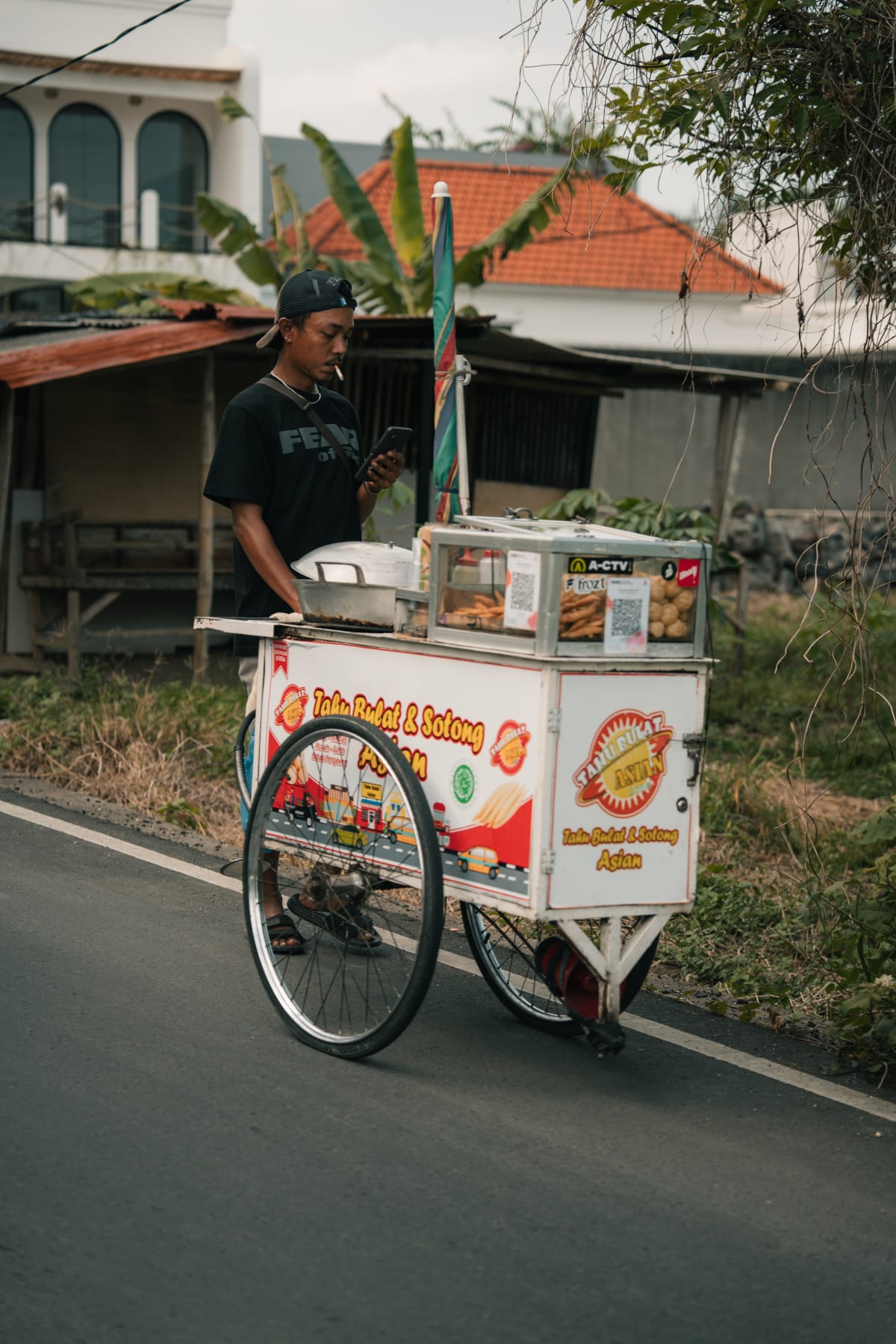
Table of Contents
The 40 MB ARW that my laptop could not open
This morning in Bali I shot the portrait above on my Sony A7C II with the FE 24-70mm F2.8 GM II at 70mm, f/2.8, 1/1600s, ISO 320. The file came off the CFexpress card as an ARW: 40.7 MB, 7008 pixels tall, completely unviewable in my laptop's built-in preview.
This is the situation every photographer faces: you have a card full of RAW files and you need to share one quickly, or send a selection to a client, or post a single frame somewhere. You do not want to open Lightroom and wait for the import. You definitely do not want to upload a 40 MB camera file to some random website that might keep it forever.
What I do: drag the ARW into SammaPix's browser RAW converter. It decodes the file locally using LibRaw compiled to WebAssembly, converts it to a 3.8 MB JPG, and I download it in about 5 seconds. The original ARW never goes anywhere. I shot the photo you see above: it went from 40.7 MB ARW to 3.8 MB JPG, which is a 91% reduction in size, with no server involved.
Below I will explain why RAW files are hard to open, which format your camera uses, and how the conversion works, so you understand exactly what is happening to your files.
What is a RAW file and why can't apps open it?
When you press the shutter on a digital camera, the sensor captures light as raw electrical signals. In JPG mode, the camera's internal processor immediately converts those signals into a finished image: it applies a white balance, sharpens the edges, adds its own colour science, compresses everything by roughly 80 to 95 percent, and saves a JPG. Fast. Done. But a lot of information is permanently thrown away.
In RAW mode, the camera skips all of that. It saves the raw sensor data directly: every photon count from every pixel, the colour filter array readings, the camera's measured settings, but no baked-in processing. That is your RAW file. It is essentially a digital negative.
Why most apps cannot open RAW files
The problem is that there is no single universal RAW format. Canon invented their own (CR2, then CR3). Nikon invented theirs (NEF). Sony invented theirs (ARW). Fujifilm, Olympus, Panasonic, Pentax, Hasselblad, and more than 800 other camera models all have their own proprietary RAW formats with different sensor layouts, compression schemes, and metadata structures.
To decode a Sony ARW from an A7C II correctly, software needs to know the exact sensor dimensions, the Bayer colour filter pattern Sony used on that sensor, the compression algorithm, how the white balance coefficients are stored, and more. A generic image viewer cannot guess any of this. It needs a decoder built specifically for that camera model.
This is why macOS Preview shows a blurry thumbnail for some RAW files but a blank grey box for others, and why Windows Photo Viewer often refuses to open them entirely. They only support the RAW formats that camera makers have specifically licensed to Microsoft and Apple, and even then, support lags months or years behind new camera releases.
How LibRaw solves this
The open-source LibRaw library is a community-maintained database of decoders for more than 800 camera models. Lightroom, Capture One, Darktable, and RawTherapee all use it (or their own equivalent) to decode RAW files. SammaPix compiles LibRaw to WebAssembly, which means the decoder runs inside your browser tab, on your CPU, with no server round trip. The RAW file never leaves your machine.
RAW formats by camera brand: CR2, NEF, ARW, RAF and more
Here is the complete reference table for the RAW format your camera uses, so you can look up the right converter or search term.
| Brand | RAW Extension | Example Cameras | Typical RAW Size |
|---|---|---|---|
| Canon | .CR2 (older) · .CR3 (2018+) | EOS R5, R6 II, 5D Mark IV, 90D | 25 to 55 MB |
| Nikon | .NEF · .NRW (compact) | Z8, Z9, Z6 III, D850, D780 | 30 to 100 MB |
| Sony | .ARW | A7C II, A7R V, A7 IV, ZV-E1 | 20 to 60 MB |
| Fujifilm | .RAF | X-T5, X100VI, GFX 100S, X-S20 | 25 to 130 MB |
| Adobe / Cross-brand | .DNG | Leica M11, Sigma fp, DJI drones, many Ricoh | 15 to 85 MB |
| Olympus / OM System | .ORF | OM-5, OM-1 Mark II, E-M1X | 15 to 30 MB |
| Panasonic | .RW2 | Lumix S5 II, G9 II, S1R | 20 to 45 MB |
| Pentax | .PEF · .DNG | K-3 III, K-1 Mark II | 25 to 40 MB |
All of the formats in this table are supported by SammaPix RAW Converter. For dedicated per-brand conversion pages, see CR2 to JPG and RAW to JPG.
How to open and convert a RAW file in the browser
The workflow is the same regardless of whether your file is a CR2, NEF, ARW, or RAF. Here is the step-by-step process:
- Go to sammapix.com/tools/raw-converter in Chrome, Safari, Firefox, or Edge. No account required.
- Drag and drop your RAW file onto the converter, or click to browse. The tool auto-detects the format from the file header.
- LibRaw decodes the file locally. You will see a progress indicator. For a 40 MB ARW on a modern laptop, this takes 4 to 6 seconds.
- Preview the converted image. You can verify the result before downloading.
- Download the JPG. The file is created in your browser and downloaded directly to your device. The RAW file is never sent anywhere.
That is the entire process. You can also use the specific per-format converters at /convert/cr2-to-jpg or /convert/raw-to-jpg if you prefer a more focused experience.
Open your RAW file right now
Drag your CR2, NEF, ARW, RAF, DNG or other RAW file into the converter. Decodes locally via LibRaw in WebAssembly. Nothing is uploaded. Free with no account required.
Open the RAW Converter, FreeHow to open a CR2 file (Canon)
CR2 is Canon's RAW format for cameras produced roughly between 2004 and 2018, including the 5D Mark series, 7D series, and EOS Rebel lineup. Newer Canon cameras (EOS R5, R6, R3 and anything released after 2018) use CR3, Canon's updated RAW format.
Why your Mac or Windows PC cannot open CR2
macOS Preview can open CR2 files from some Canon cameras but not all. The support depends on whether Apple has added a codec for that specific model. Windows Photo Viewer requires the Microsoft Camera Codec Pack or the newer Microsoft Raw Image Extension from the Store. Neither is installed by default on Windows 11.
How to convert CR2 to JPG without Lightroom
The fastest method without installing software: go to sammapix.com/convert/cr2-to-jpg and drop your .cr2 file. LibRaw decodes it in the browser and outputs a full-resolution JPG. If you have CR3 files from a newer Canon body, the main RAW converter handles both CR2 and CR3.
Free software alternatives if you prefer a desktop app: Canon Digital Photo Professional (DPP) is Canon's own free RAW processor, available for both Mac and Windows. It produces excellent results because Canon builds in their own colour profiles, but it only works with Canon cameras. For cross-brand use, Darktable and RawTherapee are powerful free open-source options.
How to open a NEF file (Nikon)
NEF is Nikon's RAW format, used across almost their entire camera line from the consumer D3xxx series up to the professional Z9 and D6. The format has been updated multiple times over the years, so a NEF from a Z9 is substantially different internally from a NEF from a D70 shot in 2004, though they share the same extension.
NEF compression types
Nikon cameras offer several NEF compression modes: uncompressed (largest, lossless), lossless compressed (smaller, fully reversible), and lossy compressed (smaller still, a very small amount of data is discarded). For most photographers, lossless compressed NEF is the right choice. It gives you all the editing latitude of a RAW file at roughly half the file size.
How to open a NEF file without Lightroom
Open your .nef file in the SammaPix RAW converter with no installation required. Nikon ViewNX-i is Nikon's own free viewer and basic editor for NEF. On Windows 10 and 11, installing the Microsoft Raw Image Extension from the Microsoft Store adds NEF thumbnail and preview support to File Explorer, without a full photo app.
How to open an ARW file (Sony)
ARW is Sony's RAW format, and it is the one I work with daily on my A7C II. My ARW files average 40 to 42 MB per shot at the camera's full 33 megapixel resolution. They are beautiful files to work with in post: the Sony sensor captures enormous dynamic range, easily 14 stops, which gives me shadow recovery and highlight control I simply cannot achieve with the camera's JPG output.
The problem with ARW on Windows
Windows does not natively support ARW files from newer Sony cameras. Even Windows 11 with all updates installed will show a grey box for an ARW from the A7C II in File Explorer. You need either the Microsoft Raw Image Extension (free, from the Store), or a dedicated app. macOS handles ARW better, but Preview often renders with flat-looking colours because it uses a generic colour profile rather than Sony's own colour science.
How to open an ARW file without software
The quickest option: drop the .arw file into SammaPix RAW Converter in your browser. It decodes using LibRaw and delivers a colour-accurate JPG in seconds. Sony Imaging Edge Desktop is Sony's own free application for full ARW editing, but it requires installation and an account for some features. For quickly converting one file to share after a shoot, the browser tool is faster.
Convert CR2, NEF, or ARW to JPG in seconds
No Lightroom. No install. Drop your RAW file and download the JPG. Everything runs in your browser with LibRaw. The file never leaves your device.
RAW vs JPG: which to keep?
I am sometimes asked whether it is worth shooting RAW at all if you just convert to JPG anyway. The answer is yes, unambiguously, if you care about your photos. Here is why.
What the RAW file gives you that JPG cannot
- Shadow recovery: A slightly underexposed RAW file can often be lifted 3 to 4 stops in post with acceptable noise. A JPG lifted the same amount looks broken, with crushed blacks and ugly banding.
- Highlight recovery: Blown highlights in a JPG are gone forever. In a RAW, the sensor data for those overexposed areas is often still present and can be recovered partially or fully.
- White balance: In a JPG, white balance is baked in. Changing it later means reprocessing and losing data. In a RAW, white balance is just a metadata tag that you can change freely with no quality loss.
- Non-destructive editing: Every edit you make to a RAW is stored as instructions, not baked into the pixel data. You can always return to the original.
The storage question
The honest tradeoff with RAW is storage. A full day of shooting on my A7C II produces around 800 files at roughly 40 MB each: that is 32 GB per day of shooting. Over a two-week trip, that adds up fast.
My workflow: I cull the take first (delete the blurry frames, the misses, the duplicates), then archive the keepers to a NAS at home and a cloud backup. I never delete a RAW file from a shoot I care about. Hard drives are cheap. Reshooting a moment is impossible.
When JPG-only is fine
If you are shooting casual events where speed matters more than post-processing control, or if you have very limited storage and cannot backup reliably, shooting JPG-only is a reasonable choice. Modern camera JPGs are much better than they were ten years ago. Just understand that you are making a permanent tradeoff: the editing latitude you give up never comes back.
You can see the kind of photos these RAW files produce in my portfolio , the travel photos these tools were built for.
Why I never upload RAW files to random converters
This matters more than most photographers realise. RAW files are large, but they are also information-dense. Your ARW or NEF contains:
- GPS coordinates (if your camera or phone has GPS enabled): exact location of where the photo was taken.
- Camera serial number: identifies your specific camera body, which could be linked to your purchase records.
- Timestamps: exact date and time to the second.
- Full-resolution image data: for client portraits, that is your client's face in a 33 megapixel file, uncompressed.
When you upload a RAW file to a random converter, you are handing all of that to a third-party server. Their privacy policy may say they delete files after 24 hours. But do they? Are those servers encrypted? Who else has access? You simply do not know.
How SammaPix processes RAW files differently
SammaPix compiles LibRaw to WebAssembly and runs it inside your browser tab. When you drop an ARW into the converter, this is what happens: your browser reads the file bytes from your disk, passes them to the WebAssembly module running in your tab, LibRaw decodes them, and the output JPG is constructed entirely in JavaScript memory. The decoded image is then offered for download via a browser blob URL.
At no point does the file travel over the network. There is no API call. There is no server receiving your image data. If you want to verify this yourself, open your browser's network inspector (F12, then the Network tab), then drop a RAW file into the converter. You will see zero outgoing requests containing your file.
I built this tool for the same reason I use it: I shoot a lot of client work and personal portraits, and those files should not leave my control. If you want to strip GPS and other EXIF metadata from the JPG before sharing, you can also use SammaPix Compress with EXIF stripping enabled, also entirely in-browser.
Batch RAW conversion: converting multiple files at once
After a shoot I typically need to convert not one file but a selection of 20 to 50 keepers quickly. The browser converter supports dropping multiple RAW files at once. They are processed sequentially, one at a time, each using your CPU via the WebAssembly module. On a MacBook Pro M3, converting a 40 MB ARW takes about 4 seconds, so a batch of 20 takes roughly 80 seconds total without leaving the browser.
When to use desktop software instead
For large batches of 100 or more files, a desktop application is faster. Lightroom Classic can export 100 RAW files to JPG in the background while you continue working. Adobe Bridge with Camera Raw, or Darktable with its export queue, also handle large batches efficiently. The browser converter is best for quick one-off conversions and small selections where you want speed and privacy without opening a full application.
Free desktop options for batch RAW conversion
- Darktable (free, Mac/Windows/Linux): professional-grade RAW processor with batch export. Uses LibRaw internally.
- RawTherapee (free, Mac/Windows/Linux): highly configurable, excellent for technical users.
- Canon DPP (free for Canon users): best colour accuracy for CR2 and CR3 files.
- Nikon ViewNX-i (free for Nikon users): best results for NEF files.
- Sony Imaging Edge Desktop (free for Sony users): handles ARW with Sony's own colour profiles.
Convert your RAW files, compress, or strip EXIF
After converting RAW to JPG, you may want to compress the result before sharing or strip GPS metadata. All three tools run locally in the browser with no upload.
FAQ
Why can't I open a RAW file on my computer?
RAW files are proprietary, camera-specific formats that contain unprocessed sensor data. They require a decoder that understands your specific camera model. Windows Photo Viewer and macOS Preview can open some RAW formats but not all, and they often show a low-quality thumbnail rather than the full-resolution image. Professional tools like Lightroom, Capture One, or SammaPix's browser-based RAW converter use the open-source LibRaw library to decode virtually every RAW format accurately.
What is the difference between a RAW file and a JPG?
A RAW file contains the raw, unprocessed sensor data from your camera. No sharpening, no white balance baking, no noise reduction has been applied. This gives you maximum flexibility in post-processing. A JPG is a compressed, processed image where the camera has already applied its own tone curves, sharpening, and color science, then thrown away roughly 80 to 95 percent of the data to keep the file small. RAW files are typically 20 to 50 megabytes. JPGs of the same shot are 3 to 8 megabytes.
How do I open a CR2 file without Lightroom?
You can open a CR2 file (Canon RAW format) in SammaPix's browser-based RAW converter at sammapix.com/tools/raw-converter. Drop your CR2 file, and the tool decodes it locally using LibRaw compiled to WebAssembly. Nothing is uploaded to any server. You can also use the free Canon Digital Photo Professional software, or convert via our dedicated page at sammapix.com/convert/cr2-to-jpg.
How do I open a NEF file without Lightroom?
NEF is Nikon's RAW format. You can open it in SammaPix's browser-based converter at sammapix.com/tools/raw-converter without installing any software. Alternatively, Nikon ViewNX-i is a free official app from Nikon that opens NEF files. On Windows 10 and 11, you can install the Microsoft RAW Image Extension from the Store for basic NEF preview support.
How do I open an ARW file from my Sony camera?
ARW is Sony's RAW format, used by cameras like the A7C II, A7R V, and ZV-E1. Drop your ARW file into SammaPix's RAW converter at sammapix.com/tools/raw-converter to convert it to JPG instantly, entirely in your browser. Sony Imaging Edge Desktop is Sony's official free tool for full ARW editing, but it requires installation. For quick sharing, the browser converter is faster.
Is it safe to upload my RAW files to an online converter?
Many online converters upload your file to a remote server, which is a privacy risk, especially for client work, travel photos with GPS metadata, or personal images. SammaPix processes RAW files entirely inside your browser using LibRaw compiled to WebAssembly. Your file is read by JavaScript running locally on your device. It is never sent to any server, never stored, and never visible to SammaPix.
What RAW formats does SammaPix support?
SammaPix supports over 30 RAW formats including: CR2 and CR3 (Canon), NEF (Nikon), ARW (Sony), RAF (Fujifilm), DNG (Adobe and many mirrorless cameras), ORF (Olympus/OM System), RW2 (Panasonic), PEF (Pentax), NRW (Nikon compact), SRW (Samsung), 3FR (Hasselblad), and more. The full list follows LibRaw's supported camera database at libraw.org.
Should I keep my RAW files after converting to JPG?
Yes, always keep your original RAW files. The JPG you create is a processed, lossy version of your image. You can always re-export a better JPG from the RAW later, but you cannot recover the original sensor data from a JPG. A 40 megabyte ARW file costs a few cents to store on a hard drive or in cloud storage. Delete JPGs when you no longer need them. Never delete the RAW.
